

Should You Embed Your Quiz or Link to a Hosted Page?
Choose where visitors should take your quiz, then test the page, the longest quiz path, and the next action together.
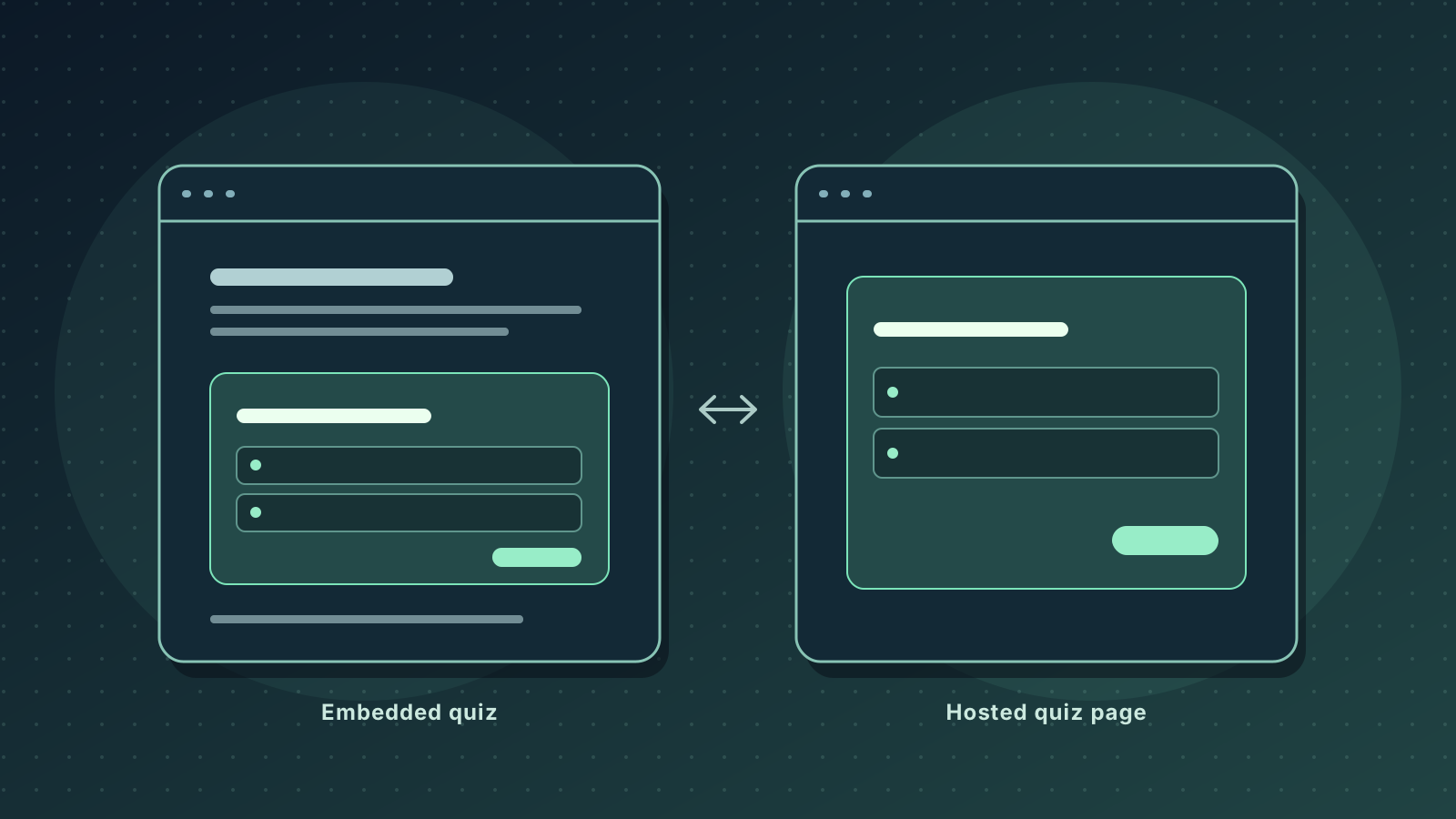
The choice is about what visitors need around the quiz
A quiz can sit inside a page visitors are already reading, or it can open on a dedicated hosted page. That choice changes what visitors can refer to while answering, how much room the quiz has, and where they land when they act on the result.
Embed the quiz when the surrounding page helps people answer and they can find that material again without losing their place. Link to a hosted page when the quiz is a task people can do on its own, when visitors are arriving from several places, or when you can’t reliably fit or maintain an embed on the website. A hosted link adds a page transition. An embed adds another layout to test and maintain.
Work out what visitors need at the moment they answer
Pick a question where people could plausibly give the wrong answer for lack of context. What would they need to check? If the answer depends on the product comparison, price table, or examples on the current page, try the quiz immediately after that material. At phone width, check how far people have to scroll to look back and whether they can find the current question again. If they keep making the trip, put the essential distinction beside the question or simplify what it asks.
If the page only explains why to start, carry that promise onto the hosted page. A link labeled “Find your workshop” should land on an introduction that names the workshops covered, tells people what they need to know before starting, and explains what they’ll get at the end. Open that link directly without first reading the website. Check whether it still makes sense to someone arriving from an email or event listing.
An inline embed typically uses an iframe, which displays another page inside your page. That gives you two layouts to check. The frame may fit its column while the surrounding page still clips it, or the content inside the frame may need more height as the quiz moves from a short question to a longer result.
HTML standard on how iframes embed documentsOpens in a new tabTest the shortest and longest routes in the real layout
Start with the same published quiz revision in both places. Open the hosted URL and the page containing the embed in fresh browser sessions. Use a test copy and fictional answers if submitting would create a lead, send a message, or reserve a spot. On the embed page, begin at the top and find the quiz as a visitor would. Test the actual page template with its normal navigation and banners in place. The builder preview cannot account for those elements.
Choose one short path and one that puts the most content or interaction on the screen. That might be a long answer list, a text field with the phone keyboard open, or a detailed recommendation with a button below it. Follow each path through the result and onward to the next action. Check that you can still read the prompt, reach the controls, and return to the page content when needed.
Try a phone in portrait orientation and a narrow browser window. At a narrow width, look for text that forces sideways scrolling, a sticky element covering a button, and a frame that cuts off the bottom of a long result. W3C’s reflow guidance explains why a layout needs to keep content and controls usable when space shrinks, including when visitors zoom in.
W3C guidance on reflow and narrow layoutsOpens in a new tabExample: a workshop picker on a course comparison page
Suppose a ceramics school offers a one-session sampler, a four-week beginner course, and an independent studio pass. The picker asks whether someone has completed a wheel session led by an instructor. The requirement for independent studio time is explained in the comparison above the picker, so an inline quiz is worth testing there.
On a phone, a visitor who needs to check the studio pass requirement has to scroll back through the price and schedule rows. Put the link between the question and the decision in the prompt itself: “The independent studio pass requires a previous wheel session led by an instructor. Have you completed one?” Now the school can test whether visitors still use the comparison to choose a course or can complete the picker from a standalone link on the course calendar.
The short path ends with a sampler recommendation. The longer path explains why the studio pass fits, what to bring, and where to reserve a session. If the reservation button disappears near the bottom of the inline result but stays reachable on the hosted page, shortening every recommendation would discard useful information before checking the actual constraint. First test the same embed at the same width in a plain section of the site. If the button becomes reachable, compare the two containers for a fixed height or a setting that hides overflow. If it is still clipped, test a wider column separately to see whether text wrapping makes the result too tall for the space provided. If it still cannot be made reliable on the course page, use a clearly labeled link to the hosted picker there.
Use the difference between the two versions to find the fault
If the hosted page also fails, start with the published link, the quiz revision, and the answers needed to reproduce the issue. If an answer sends visitors to the wrong result in both versions, changing where the quiz appears won’t correct the decision logic.
If the hosted page loads but the embed is blank, check whether the website editor kept the installation code on the rendered page. Try the same code in a plain test section using the site’s supported embed block. If it works there, look for a difference in the original page template or its settings. Keep a visible link to the hosted quiz outside the embed so visitors can get to it when the inline version is unavailable. That link starts a separate visit, so avoid suggesting that it will carry over answers already entered.
If the quiz works in both places but visitors hesitate, ask them what they expected when they saw the entry link or heading, and what they think the result button will do. If the invitation suggests a price estimate but the introduction describes a course recommendation, fix that mismatch first. If people understand the recommendation but can’t tell whether the button reserves a seat or opens a schedule, clarify the action label. A few walkthroughs can expose a specific failure. Completion totals alone can’t tell you which of those problems occurred, especially if the two versions get traffic from different sources.
Publish the version you can keep working
In QuizFlow Labs, a published quiz has a hosted page you can share directly. For an inline quiz on your site, select Widget under Appearance → Presentation and copy Installation Code from Finish & Publish. Follow the setup guide, then check the page that contains the widget. If you change the site template or add a longer result later, repeat the path most likely to be affected.
Choose one primary entry for each page. Use the embed where the page genuinely helps visitors decide and the full journey fits. Use the hosted link where the quiz stands alone or you need a dependable way into it while the embed is being repaired.
Set up the QuizFlow Labs Embed WidgetQuizFlow Labs
Give your visitors a clear next step
Build a quiz that guides visitors to a recommendation, then test how they reach it on a hosted page or inside your website.
Build a quiz