

Date Picker Block
Published July 25, 2026 • Updated August 23, 2026
Use a Date Picker when the participant needs to choose a valid calendar date. It is best for start dates, booking preferences, deadlines, event dates, availability checks, and follow-up timing.
Date Picker is more reliable than asking for a date in a Text Response because the participant chooses from a calendar input. That keeps the answer structured and easier to validate, compare, and route on.
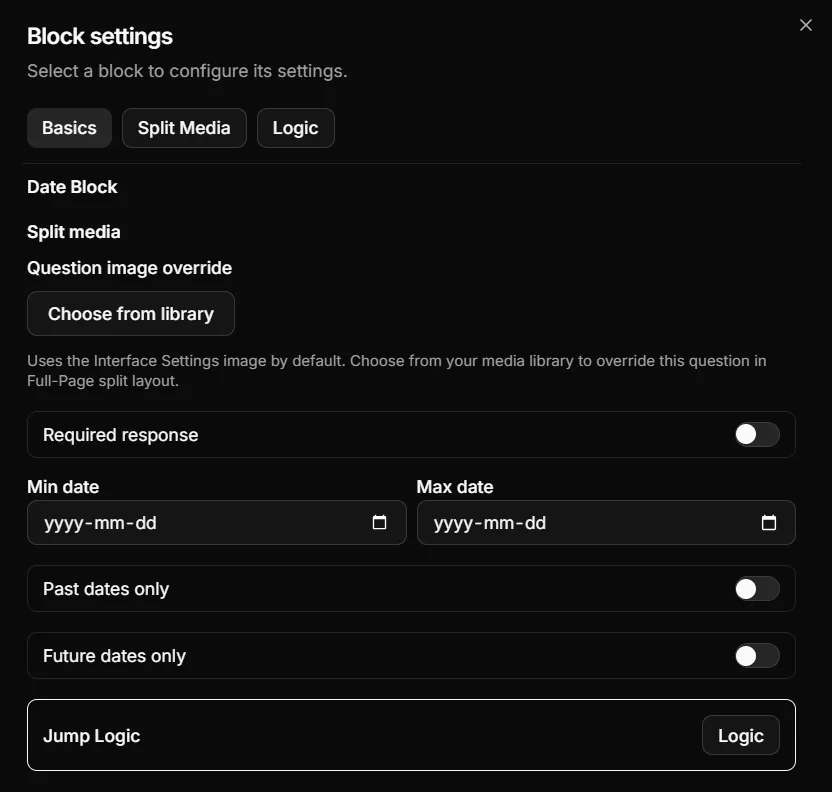
Builder settings show the controls that shape the Date Picker behavior.

Participants choose from a native calendar-style input instead of typing a free-form date.
Best used for
Appointment preference
Project kickoff
Deadline or event date
Availability screening
When to choose another block
Need an explanation
Need a broad window
Need lead form data
Need AI interpretation
Setup flow
- Add a Date Picker block from the Question Blocks palette.
- Write a prompt that tells the participant what date to choose.
- Turn on Required response when the flow cannot continue without a date.
- Turn on Collect a time when the participant should choose a local time alongside the date.
- Set Min date and Max date when the answer must stay inside a specific window.
- Use Past dates only or Future dates only when the question should reject one side of today.
- Add Jump Logic if the selected date should change the participant's path.
Settings reference
Required response
Collect a time
Min date
Max date
Past dates only
Future dates only
Split Media
Basic+Jump Logic
ProRange guidance
Use date constraints to prevent bad submissions before they happen. A future-only Date Picker works well for start dates, booking dates, and deadlines. A past-only Date Picker works better for birth dates, purchase dates, completed events, or history-based eligibility.
Enable Collect a time for appointments, events, calls, or other moments where a calendar date alone is not specific enough. The participant chooses a local date and time; include the expected timezone in the prompt when respondents may be in different regions.
Min and max dates are useful when the window is more specific than simply past or future. For example, an event registration quiz might accept dates only between the registration opening date and the event deadline.
Avoid stacking constraints that create an empty or confusing calendar. If you use both a min date and future-only, make sure the min date is still in the future. If you use both a max date and past-only, make sure the max date still leaves enough valid choices.
Routing guidance
Jump Logic can send participants to different paths when timing changes what should happen next. Common patterns include routing urgent dates to a priority path, sending unavailable dates to a waitlist, or skipping scheduling details when the selected date falls outside your service window.
Use date-based routing for clear business rules. If the meaning of the date depends on context, pair the Date Picker with a structured follow-up question or an Agent Step.
Troubleshooting
Why can participants not select a date?
Should I use past-only or future-only?
Can I branch based on a selected date?
Should I collect a date here or in Lead Capture?
Tips
- Use specific prompt language, such as "Select your preferred kickoff date" instead of "Pick a date."
- Add a min date for booking flows so participants cannot choose dates before you are available.
- Add a max date when a deadline, promotion, or event window matters.
- Use structured choices instead of Date Picker when exact dates are less important than timing categories.
- Preview the question in the participant experience after changing date rules.
- Test edge cases around today, the min date, and the max date before publishing.
Next steps
Collect written timing context when a calendar date is not enough.
Collect contact details and appointment-related fields before completion.
Route participants when selected dates affect the next step.
Compare Date Picker with the rest of the block palette.