

Image Choice Quiz
Published July 25, 2026
An image choice quiz lets participants answer by comparing visual options instead of reading a long list of text choices. Use it for product matching, style preferences, visual diagnostics, examples, inspiration, assessments, and any quiz where pictures make the answer easier to understand.
In QuizFlow Labs, image choice quizzes are built with a Multiple Choice block using the Media card style.
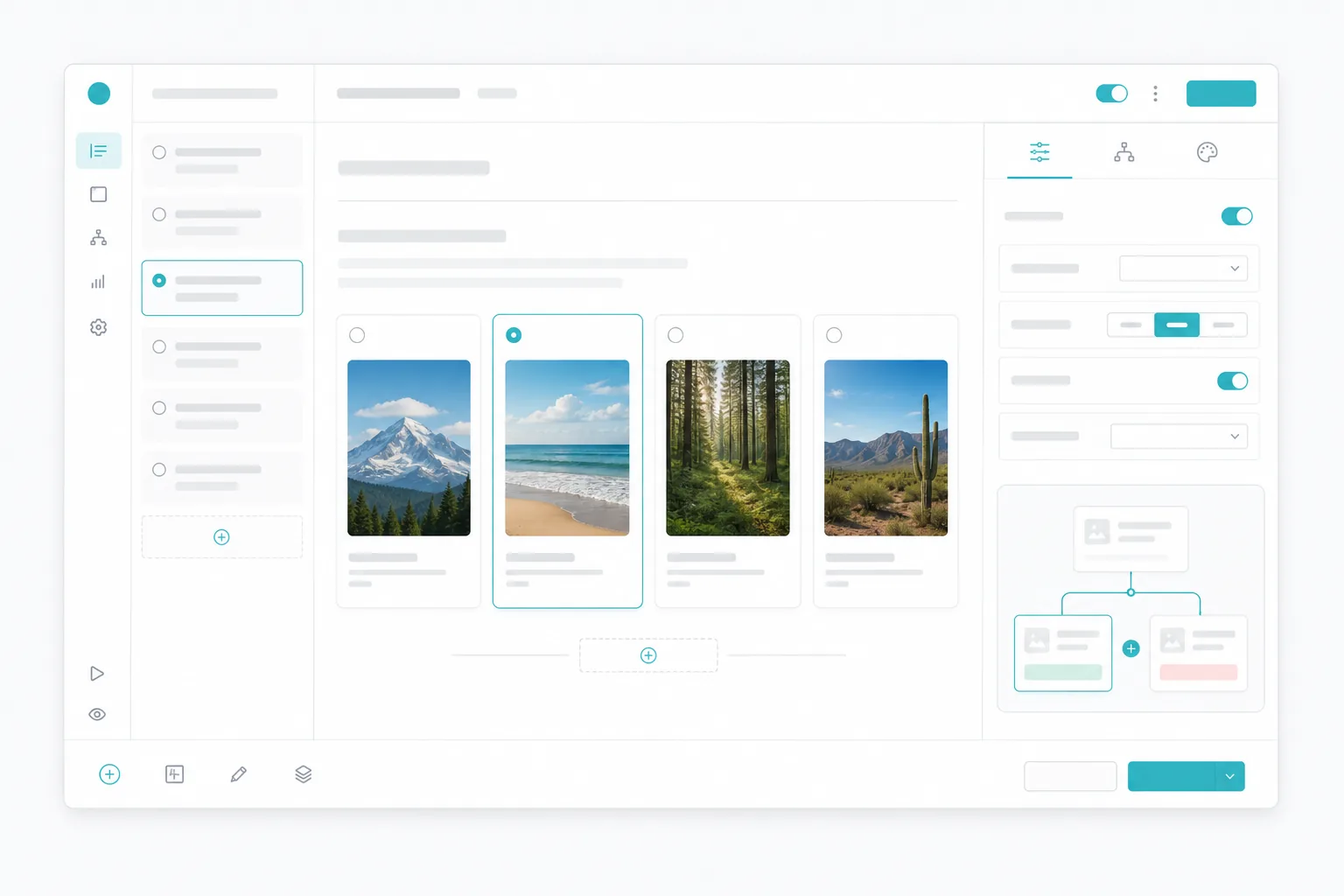
Image choice quizzes work best when the visual options are easy to compare and the labels stay short.
Best used for
Product matching
Style preferences
Visual diagnostics
Learning and assessment
Before you build
Use comparable images
Keep labels short
Plan the output
Avoid vague visuals
Build a visual multiple choice quiz
- Add a Multiple Choice block and write a prompt that asks for one visual decision.
- Open Settings and set Style to Media card.
- Return to Options and add an image to each choice with Choose from library or Search GIFs.
- Add or confirm Alt text so each option remains understandable without the image.
- Choose an image position for each option, then preview the quiz on desktop and mobile.
- Add optional Tags, Scores, Answer Key, or Jump Logic depending on the outcome you need.
Media sources and positions
Use the Asset Library for the most reliable image delivery. Asset Library images inherit saved alt text by default and newly selected images start with the Large top (card image) position.
You can also use Search GIFs to pick a GIPHY-powered GIF for a choice when motion helps the participant recognize the answer.
Large top
Medium top
Small top
Top
Left
Upload limits and quality guardrails
Media card choices use Asset Library image rules so visual flows stay fast and consistent.
Accepted image files
Source file size
Image processing
Post-compression limit
If a file does not pass validation, the Asset Library blocks it immediately so you can retry with a smaller or cleaner image.
Scoring, tags, and routing
Tags and variables
Scoring
Basic+Answer Key
Basic+Jump Logic
ProFor full setup details, see Multiple Choice, Response Tags, Scoring Logic, and Logic & Branching.
Common patterns
Product recommendation quiz
Use one product, category, or use-case image per option. Tag each choice, score if needed, and route to a completion CTA that matches the participant's selected preference.
For a complete ecommerce workflow, see Product Recommendation Quiz.
Style or preference quiz
Use consistent image dimensions and comparable framing so participants compare style, mood, or preference instead of reacting to image quality differences.
Visual assessment quiz
Pair image options with scoring and Answer Key controls when one image is correct. Add immediate feedback if participants should learn during the quiz.
Troubleshooting
Why can I not add images to options?
Why was my image rejected?
Why do my cards look uneven?
Should I use Media card or Product Cards?
Should I use GIFs?
Tips
- Ask one visual decision per question.
- Use the same image aspect ratio across all options.
- Put the most important subject near the center of each image.
- Keep labels short and direct.
- Add alt text for every choice image.
- Test on mobile before publishing.
- Use tags or scores when the image choice should affect the final result.
Next steps
Configure style, selection mode, scoring, tags, and logic for visual and text choices.
Build a conversion-focused product matching flow with image choices and completion CTAs.
Use tags to personalize follow-up content and exported data.
Route participants based on image choices and score thresholds.
Present products, offers, pricing, badges, and checkout paths after quiz answers.